Best HubSpot Workflow Examples
The most useful HubSpot workflow examples are tied to a specific business process. Rather than automating isolated tasks, teams can connect triggers, conditions, delays, and actions into workflows that move leads, deals, tickets, and CRM records forward automatically.
Lead Management Workflow Examples
New lead assignment
Lead created → enrich → evaluate → assign → notify
When a new lead enters HubSpot, the workflow can evaluate relevant properties, assign ownership, and notify the appropriate salesperson. This creates a consistent handoff instead of relying on manual monitoring.
Lead nurture
Lead enters lifecycle stage → delay → email → wait → engagement check → next action
A nurture workflow can deliver relevant follow-up over time and branch based on whether the contact engages, helping teams avoid treating every lead the same way.
Lead re-engagement
No recent activity → wait → outreach → activity check
This workflow can identify contacts that have gone inactive and trigger a planned re-engagement process.
Sales Workflow Examples
Deal stage automation
Stage changes → create task → notify owner → set deadline
When an opportunity moves to a new stage, HubSpot can automatically create the appropriate sales activity and notify the deal owner.
Inactive opportunity alert
No activity → wait → check engagement → alert rep
A workflow can flag opportunities that have stopped progressing so reps can investigate before the deal goes cold.
Closed-won handoff
Deal closed → update lifecycle → notify customer team → create onboarding action
This connects the sales process with the next stage of the customer journey, reducing manual handoffs after a deal closes.
Customer Service Workflow Examples
Ticket escalation
Ticket created → check priority → branch → assign → notify
A workflow can evaluate ticket conditions and automatically route urgent or high-priority issues to the appropriate team.
Customer follow-up
Ticket resolved → wait → follow up → record response
After resolution, automation can initiate follow-up and record the customer's response for continued service management.
CRM Data Workflows
Standardize records
Record created → normalize data → update properties → associate records
Data workflows can keep CRM records more consistent by applying standardized values and maintaining relationships between related records.
These examples show how HubSpot workflows can support lead management, sales automation, marketing processes, customer service, and CRM administration. The common pattern is:
Business event → decision → automated action → next stage.
HubSpot Sales Workflows
HubSpot sales workflows help automate the repetitive steps that happen as leads and opportunities move through the sales process. Teams can use them for lead assignment, lead routing, qualification, sales notifications, deal-stage automation, task creation, follow-up, inactive-deal alerts, meeting-related actions, ownership changes, and pipeline handoffs.
A common inbound process is:
Inbound lead → enrichment → qualification → routing
Once the lead meets the required criteria, HubSpot can assign ownership, notify the right salesperson, and trigger the next sales activity.
For opportunities already in the pipeline, a workflow might follow:
Deal stage → task → notification → follow-up
For example, a stage change can automatically create a task for the deal owner, send an internal notification, and establish a deadline for the next action.
A third workflow can connect qualification with scheduling:
Qualified lead → sales handoff → meeting
This helps reduce manual coordination when a lead is ready to speak with sales.
The broader idea is important for revenue teams:
A HubSpot workflow can automate what should happen after a sales event occurs. The more important question is whether the event itself contains enough buyer context to determine the next action.
For example, a CRM status change is one trigger. Active buyer behavior, intent, identity, and engagement can provide another layer of context for deciding whether a buyer should be qualified, routed, engaged, or scheduled.
HubSpot Marketing Workflows
HubSpot marketing workflows help teams automate repetitive activities throughout the inbound and lifecycle marketing process. They can move contacts between lifecycle stages, trigger follow-up after form submissions, support lead nurturing, update campaign data, initiate re-engagement, and notify sales when a lead reaches a defined qualification point.
A common nurture workflow looks like:
Form submission → lifecycle update → email → delay → engagement check
The workflow can then send different follow-up based on whether the contact engages, allowing marketing teams to create more responsive nurture paths instead of sending the same message to everyone.
For sales handoffs, a workflow could follow:
Marketing qualified lead → sales notification → owner assignment
This gives the sales team a defined action when a contact reaches the required stage.
Another common use case is re-engagement:
Inactive contact → re-engagement sequence
Marketing workflows can also support personalization, campaign data updates, lifecycle management, lead handoffs, and other automated processes across the customer journey.
The broader goal of HubSpot marketing automation is to turn recurring marketing events into consistent actions, while using contact data and engagement signals to determine what should happen next.
HubSpot Workflow Best Practices
A HubSpot workflow should be designed as a maintainable business process, not simply as a collection of automated actions. A workflow that works today can become a liability six months later if nobody knows why it exists, what depends on it, or when it should stop running.
Give every workflow a clear purpose
Define the business outcome before building the automation. A workflow should have a clear trigger, intended audience, and expected result.
Use consistent naming
Names should make the workflow's purpose, object, and function obvious. Consistent naming makes auditing and troubleshooting much easier.
Organize workflows into folders
Use folders to group workflows by team, business function, lifecycle stage, or process. HubSpot provides workflow organization capabilities specifically for managing larger workflow libraries.
Be deliberate about enrollment and re-enrollment
Define exactly when records should enter the workflow and whether they should be allowed to enter again. Poorly planned re-enrollment can cause repeated emails, notifications, assignments, or record updates.
Use branches instead of duplicating workflows
When multiple outcomes share the same initial process, use branching logic rather than creating several nearly identical workflows.
Add delays where timing matters
Use delays deliberately for nurture, follow-up, handoffs, and other processes where an immediate action would be inappropriate.
Test before activating
Test enrollment criteria, branches, delays, and actions before turning the workflow on. This is particularly important for workflows that modify CRM records or trigger communication.
Document dependencies
Record what triggers the workflow, what other workflows or processes depend on it, and what assumptions its logic makes.
Audit inactive workflows regularly
Review outdated workflows and remove or archive automations that are no longer needed. This helps reduce clutter and prevents old logic from accidentally affecting current processes.
Monitor performance
Review enrollment, completion, errors, and business outcomes regularly. A workflow should be measured by the process it improves, not simply by whether it successfully executes.
The best HubSpot workflow is not necessarily the most complicated one. It is the one with clear logic, controlled enrollment, understandable actions, and an outcome the team can actually measure.
How to Create a HubSpot Workflow
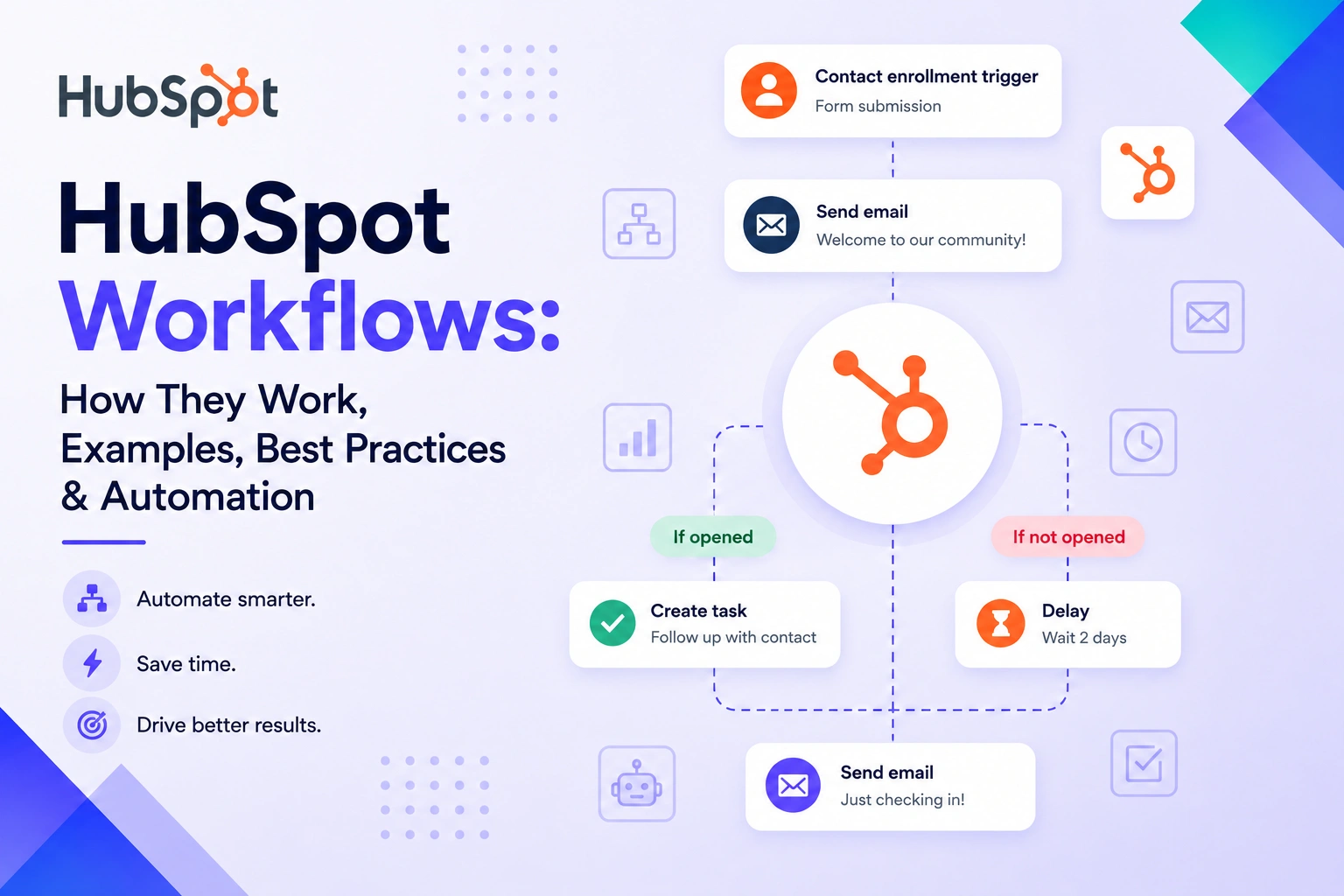
Creating a HubSpot workflow follows a straightforward process: choose how to create → choose the object → define the trigger → configure enrollment → add actions → add branches or delays → test → review → publish.
Start with AI, a template, or from scratch
HubSpot currently gives you three ways to begin: use AI to generate a workflow, start from a template, or build one from scratch. The best option depends on how much control and customization your process requires.
Choose the workflow object
Select the type of record the workflow should operate on, such as a contact, company, deal, ticket, or lead, depending on the automation you are building.
Define enrollment triggers
Set the conditions or events that should cause records to enter the workflow. HubSpot supports approaches including filter-based, event-based, scheduled, webhook, and manual enrollment.
Add actions
Choose what should happen after enrollment, such as updating a property, assigning ownership, creating a task, sending a notification, or performing another supported action.
Add branches and timing
Use branches when different records should follow different paths, and add delays when actions need to happen after a specific period or event.
Review settings and re-enrollment
Check enrollment and unenrollment rules carefully, then decide whether records should be allowed to re-enroll when they meet the criteria again.
Test the workflow
Test the enrollment criteria, branches, delays, and actions before activating the workflow. This helps catch unintended paths before the automation affects real records.
Turn it on and monitor it
Review the completed configuration, activate the workflow, and monitor its activity and results so you can adjust the automation as the underlying process changes.
The simplest way to think about building a HubSpot workflow is:
Trigger → record → conditions → actions → outcome
A well-designed workflow should automate a clearly defined process rather than simply add more automation for its own sake.
HubSpot Workflow Organization and Management
As the number of automations grows, HubSpot workflow management becomes just as important as creating the workflows themselves. A clean system makes it easier to understand what each workflow does, identify dependencies, troubleshoot problems, and safely make changes.
Use folders and consistent naming
Organize workflows by team, function, lifecycle stage, or process so users can quickly find the automation they need. Use naming conventions that make the workflow's purpose obvious, such as its object, trigger, and business function. HubSpot provides dedicated tools for organizing workflows into folders.
Assign ownership
Make it clear who is responsible for maintaining each important workflow. Ownership helps teams know who should review or change an automation when the underlying process changes.
Separate active and inactive workflows
Regularly review active workflows and identify automations that are no longer needed. Old workflows can create confusion and make troubleshooting more difficult.
Audit duplicates and dependencies
Look for workflows that perform overlapping actions or depend on the same properties, records, or processes. Before changing one automation, understand what other workflows may be affected.
Document and clean up
Document the purpose, enrollment criteria, important branches, and dependencies of complex workflows. Remove obsolete automations and keep the workflow library focused on processes the business still uses.
A practical management cycle is:
Build → organize → monitor → audit → optimize
The goal is not simply to have fewer workflows. It is to ensure that every active workflow has a clear purpose, understandable logic, responsible owner, and measurable business outcome.
HubSpot Workflow Automation with AI
HubSpot has incorporated AI into workflow creation, allowing users to use Breeze Assistant to help generate enrollment triggers and workflow actions. This can make it faster to turn a plain-language description of a business process into an initial workflow structure.
For example, instead of manually designing every starting condition, a user can use AI to help generate the workflow logic and then review and refine the suggested triggers and actions.
However, AI-assisted workflow creation is different from fully autonomous workflow execution. The AI can help build the automation, but teams still need to review whether the enrollment logic, actions, branches, timing, and business rules accurately reflect the intended process.
A practical AI-assisted workflow process is:
Describe the process → generate workflow logic → review triggers → review actions → test → publish → monitor
This makes HubSpot workflow AI particularly useful for speeding up workflow development, while human review and governance remain important, especially when automations can change CRM data, communicate with customers, or affect sales processes.
Common HubSpot Workflow Mistakes
HubSpot workflows can save significant manual work, but poorly designed automation can create just as much operational overhead. The most common problems usually come from workflow logic and governance, rather than the automation feature itself.
Too many overlapping workflows can cause multiple automations to act on the same record. This often results in duplicate updates, notifications, or communications.
Poorly defined enrollment criteria can enroll the wrong records or miss records that should enter the workflow. Enrollment and re-enrollment rules should be reviewed before activation.
Unexpected re-enrollment can cause the same actions to run repeatedly when a record meets the criteria again.
Missing delays can make follow-up happen too quickly or cause multiple actions to fire at once.
No suppression logic can allow contacts to continue through a workflow even after their status or circumstances have changed.
Duplicate actions create unnecessary emails, tasks, notifications, or record changes.
Unclear ownership makes it difficult to know who should maintain or troubleshoot an automation.
No testing increases the risk of activating incorrect branches or enrollment logic.
Outdated workflows left active can continue affecting records long after the original process has changed.
Finally, avoid automating a process simply because it is repetitive. Automation does not fix a poorly designed process. It makes that process happen faster and more consistently. Before building a workflow, make sure the underlying process, trigger, decision criteria, and desired outcome are clear.
Where HubSpot Workflows Start and Where Buyer-Driven Automation Begins
A typical HubSpot workflow starts with a CRM or process event and then executes a predefined sequence of actions:
CRM or process event → workflow → action
For example:
Form submitted → assign owner
Deal stage changed → create task
Ticket created → escalate
This approach works well when the business event is already captured inside HubSpot and the team knows what should happen next.
Buyer-driven automation introduces another possible starting point:
Buyer signal → identity → context → intent → action
A buyer may show meaningful interest before a conventional CRM event occurs. They could repeatedly visit high-intent pages, return to pricing content, interact with valuable resources, click a tracked link, or engage in a conversation. Those signals can provide context about what the buyer is interested in and how urgently the sales team should respond.
HubSpot workflows are powerful when the trigger and business logic already exist inside the HubSpot environment. Buyer-driven automation adds another trigger: the buyer's behavior itself.
This is where Knock AI fits conceptually. Rather than replacing CRM workflows, Knock AI can turn active buyer behavior into a revenue signal that supports identification, enrichment, intent analysis, qualification, engagement, routing, and scheduling.
The resulting workflow is:
Buyer behavior → identity → enrichment → intent → qualification → action → CRM
That makes the buyer's activity part of the workflow itself, rather than simply another field attached to a CRM record.
HubSpot Workflows vs. Knock AI
HubSpot workflows and Knock AI can both automate revenue processes, but they enter the workflow from different starting points.
HubSpot workflows typically begin with a CRM or business-process event and execute the actions defined for that event:
CRM/process event → workflow → action
That makes HubSpot particularly strong for lifecycle automation, CRM data management, sales tasks, lead routing, notifications, deal-stage processes, and other repeatable operations already represented in the HubSpot environment.
Knock approaches revenue automation from the buyer side:
Buyer behavior → identity → enrichment → intent → qualification → engagement → routing → scheduling → CRM
| Use case |
HubSpot Workflows |
Knock AI |
| CRM process automation |
Strong |
Supports CRM-connected workflows |
| Lifecycle automation |
Strong |
Not the primary use case |
| Sales task automation |
Strong |
Can trigger sales actions |
| Lead routing |
Strong |
Real-time buyer context + routing |
| Buyer identification |
Broader HubSpot capabilities |
Person and company identity |
| First-party intent |
Broader HubSpot capabilities |
Core workflow input |
| AI qualification |
Broader HubSpot AI capabilities |
Core buyer activation workflow |
| Conversational qualification |
HubSpot ecosystem |
AI conversation + qualification |
| Meeting scheduling |
Supported |
Conversational + standalone scheduling |
| Buyer engagement around meeting |
HubSpot workflows |
Persistent buyer engagement |
| Revenue activation |
CRM process automation |
Buyer signal → pipeline workflow |
The products therefore complement different parts of the revenue process. HubSpot workflows are designed to automate known business processes using CRM data, triggers, conditions, and actions. Knock AI is particularly useful when the buyer's behavior itself provides the signal that a revenue workflow should begin.
That can mean identifying a buyer, enriching the record, evaluating first-party intent, qualifying them through an AI conversation, routing them to the right person, and scheduling a meeting. Knock AI also supports both conversational scheduling and standalone scheduling, so the buyer can book directly within the conversation or through a dedicated scheduling experience.
Use HubSpot workflows when the process you need to automate is already defined inside your CRM and HubSpot ecosystem. Consider Knock AI when meaningful buyer behavior should become the trigger that starts a qualification, engagement, routing, or scheduling workflow.
FAQs
What are HubSpot workflows?
HubSpot workflows are automated processes that use triggers, conditions, delays, and actions to move CRM records or business processes forward without requiring every step to be handled manually. They can support marketing, sales, service, CRM administration, data management, and revenue operations.
How do HubSpot workflows work?
The basic process is:
Trigger → enrollment → conditions → action → CRM update
A record meets the enrollment criteria, enters the workflow, follows the configured logic, and receives the appropriate actions or updates.
What can HubSpot workflows automate?
HubSpot workflows can automate lead management, marketing activities, sales processes, customer service, CRM data updates, notifications, routing, follow-up, and other operational processes. Multiple actions can be connected into a single repeatable workflow.
What are the best HubSpot workflow examples?
Common examples include new lead assignment, lead nurturing, lead re-engagement, deal-stage automation, inactive opportunity alerts, closed-won handoffs, ticket escalation, customer follow-up, and CRM data standardization.
How do I create a HubSpot workflow?
The basic process is:
Choose creation method → object → trigger → actions → test → publish
HubSpot currently supports creating workflows with AI, from templates, or from scratch.
What is the difference between a HubSpot workflow and a sequence?
A workflow automates broader business processes across CRM and supported HubSpot functions. A sequence is primarily designed for structured sales outreach and seller follow-up.
Use workflows to automate business processes. Use sequences when the main job is structured sales outreach and follow-up.
Can HubSpot workflows use AI?
Yes. HubSpot supports AI-assisted workflow creation through Breeze, including generating enrollment triggers and workflow actions. AI can help accelerate workflow development, but teams should still review the suggested logic, test the automation, and apply appropriate governance before activation.
Can HubSpot workflows automate lead qualification and routing?
Yes. Workflow rules can evaluate CRM properties and other supported criteria, then assign ownership, route records, create tasks, send notifications, and trigger subsequent actions. For more buyer-driven processes, platforms such as Knock AI can extend that workflow by using buyer identity, enrichment, first-party intent, qualification, engagement, routing, and scheduling as connected inputs and actions.


.svg)


.svg)
.svg)
.svg)


.svg)
.svg)


.svg)


